Addis Ortho software / Free for clinicians / Windows and macOS
Addis Ortho DICOM Viewer
Addis Ortho DICOM Viewer is a free program for Windows and macOS that opens X-ray, CT and MRI studies from a CD, a folder, your hospital PACS or straight from the X-ray machine. It adds X-ray templating with Addis Ortho implant ranges, long-leg stitching, a one-click 3D bone view and bone segmentation, and it keeps working without an internet connection.
VERSION 1.0 Downloads open on 21 November 2026, at the ESOT annual meeting.
Not a certified medical device. For image review and surgical planning support only.
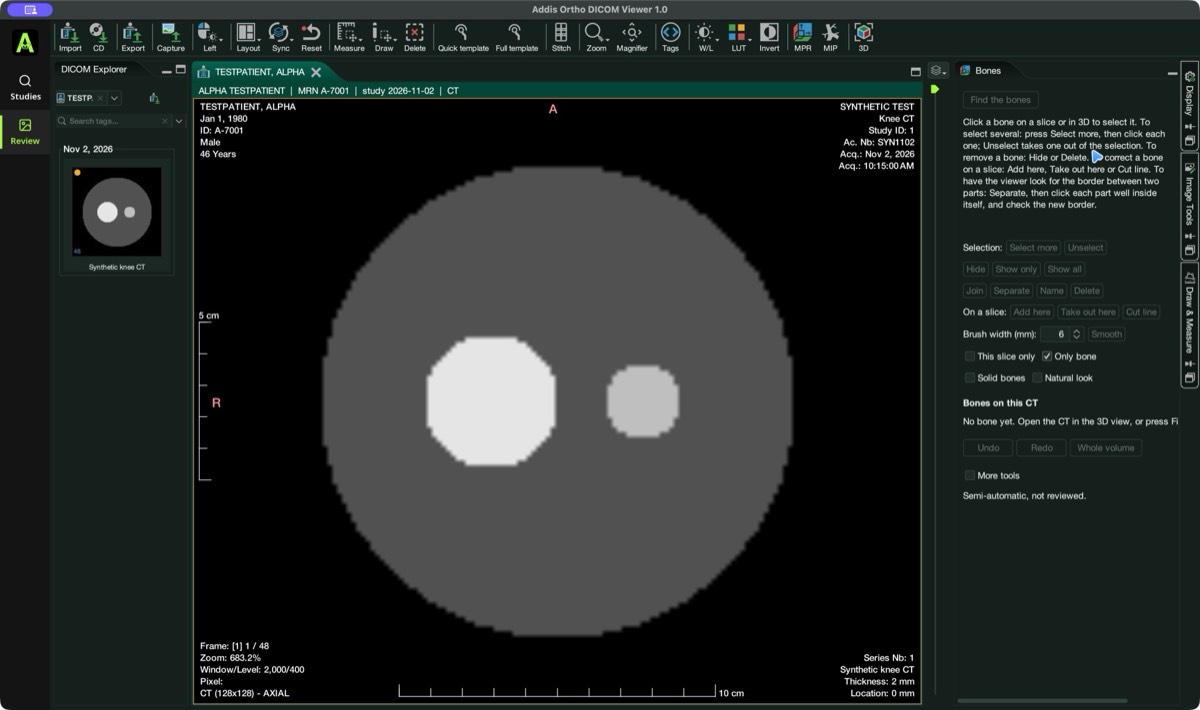
Version 1.0 on macOS, with a synthetic test patient.
01 / What it does
From the first image to the plan, in one program.
- 01
Opens CDs and PACS studies
Open a patient CD, a folder of DICOM files or a study from your hospital PACS. Measure, compare and export. - 02
Receives from the X-ray machine
The X-ray machine or CT can send images straight to the viewer over the hospital network. Off until you turn it on. - 03
X-ray templating
Template with the Addis Ortho hip, knee, bipolar and PFNA ranges and save the plan to the study. A draft for the surgeon to confirm. - 04
Long-leg stitching
Join two to four overlapping X-rays into one long-leg image. A draft: inspect every seam and confirm lengths and angles yourself. - 05
One-click 3D bone view
A CT opens as bone in 3D. Turn it, cut it open with the crop and scalpel tools, and look at the fracture from any side. - 06
Bone segmentation
Click a bone on a slice or in 3D and it is selected in colour and named. Separate fragments, erase leaks, fix the edge with a brush, and save the bones to the study or export each one as an STL file. Semi-automatic: the surgeon checks every bone.
Free for clinicians, and it works offline. Viewing, templating, segmentation and planning need no internet connection, and the 4GB edition runs them on 4 GB PCs. Your studies stay on your computer and your PACS. No expiry, no patient-volume limits, no remote shutdown.
02 / Download
Three editions. All of them free.
Version 1.0 is released on 21 November 2026 at the ESOT annual meeting. The downloads open on that day.
Most computers
Viewer
The full edition. Viewing, PACS, receiving from the X-ray machine, templating, long-leg stitching, 3D and bone segmentation.
For a PC or Mac with more than 4 GB of memory.
4 GB computers
Viewer 4GB
Every feature of the full edition, tuned for a computer with 4 GB of memory. 3D is shown at lower detail.
For a PC or Mac with 4 GB of memory.
Smallest download
Viewer Lite
For looking at X-rays and CT in 2D: open a CD, scroll, window, zoom, measure and export. No 3D, segmentation, templating, stitching or PACS.
For old or slow computers and slow connections.
How much memory does my PC have? Open Settings, System, About and read “Installed RAM”. The editions install side by side, so you can try more than one.
Which Mac do I have? Open the Apple menu, About This Mac. “Chip: Apple M…” means Apple Silicon. “Processor: Intel” means Intel.
03 / How to install
Your computer will show a warning. Here is what to click.
The installers are not yet digitally signed, so Windows and macOS ask you to confirm before they run. This is expected. It takes about two minutes.
On Windows
- Download the installer and open it from your Downloads folder. If your browser says the file is not commonly downloaded, choose Keep.
- A blue window says Windows protected your PC. Click More info.
- Click Run anyway.
- Follow the installer to the end. On a hospital PC you may need your IT administrator to approve it.
- Open Addis Ortho Viewer from the Start menu.
On macOS
- Download the installer for your Mac and double-click it. macOS says it cannot be opened because it cannot check it. Click Done.
- Open System Settings, then Privacy & Security, and scroll down to Security.
- Beside the installer’s name, click Open Anyway and enter your Mac password.
- Follow the installer to the end.
- Open Addis Ortho Viewer from the Applications folder.
Stay safe
Download the installer only from this page. For IT teams, a .sha256 checksum file is published beside every installer. If something does not look like the steps above, stop and ask us on Telegram.
04 / Founding hospitals programme
Register your hospital. Launch with us.
- 01Register your hospital
- 02Validate your workflow
- 03Train your team
- 04Go live with support
A time-limited onboarding and priority-support offer for participating hospitals. It is not a time limit on the viewer, which stays free. Deployment is subject to institutional approval, local validation and applicable EFDA requirements.
How to register
Send us a short message with:
- Your name
- Your hospital
- Your role
- Your phone number or Telegram name
Please do not send any patient information.
05 / Support
Questions go to the Addis Ortho team on Telegram.
Installation, PACS connection, templating and training. Send screenshots of the program if they help, but never images or details that identify a patient. Most questions are answered in the user manual.
Not a certified medical device.
Addis Ortho DICOM Viewer is for image review and surgical planning support only. Templates, stitched images, measurements, 3D bone views and bone segmentations are drafts. A qualified clinician must check them before any clinical decision.
Licence and source code
Addis Ortho DICOM Viewer is free for clinicians. The test builds released so far (4.7.3-1 and 4.7.3-2) are distributed under the GNU General Public License version 3 (GPLv3); for their source code, contact the Addis Ortho team on Telegram. The licence of version 1.0 is shown when you install it, and the open-source software it includes is listed in the program under Help, About.
Built on Weasis
The viewer is built on Weasis, the open-source DICOM viewer, used under the Apache License 2.0 and modified by Addis Ortho Trading PLC. Our thanks go to the Weasis team. Addis Ortho supplies the software and the technical support; patient care stays with your surgeons and your hospital. The Addis Ortho name and logo are trademarks of Addis Ortho Trading PLC.
